Last updated: August 2026
Keeping a WordPress website healthy is not a one-off job. It is a routine of small, regular tasks that stop your site being hacked, slowed down or broken by an update. This guide gives you the complete WordPress maintenance checklist, organised by how often each task needs doing, so nothing slips through the cracks.
CareWP is a Perth-based WordPress maintenance service that runs this exact checklist for businesses across Western Australia every month, so you do not have to.
Direct answer: what is a WordPress maintenance checklist?
A WordPress maintenance checklist is a structured list of recurring tasks that keep a website secure, fast and functional. It covers core, plugin and theme updates, backups, security scans, performance checks, database cleanup and uptime monitoring. Most sites need a mix of daily, weekly, monthly, quarterly and yearly tasks, totalling roughly one to two hours of work per month when done manually.
Why this checklist matters more after June 2026
If you needed proof that “I will get to it next month” is not a maintenance plan, June 2026 provided it. Security researchers tracked six separate WordPress plugin and theme vulnerabilities, each rated a critical CVSS 9.8, being actively exploited at the same time across a combined 1.14 million installations. One of the affected plugins, Kirki, had a flaw in its password reset function that let an attacker take over any admin account just by supplying their own email address. Another, in Everest Forms Pro, allowed unauthenticated remote code execution through a standard contact form field and was added to the US CISA Known Exploited Vulnerabilities catalogue within days. Even a premium, paid plugin, Gravity Forms, was hit by a supply chain compromise that planted backdoor admin accounts on affected sites before a fix shipped.
None of those six vulnerabilities required an unusual setup or an obscure plugin. They sat in tools that hundreds of thousands of ordinary WordPress sites already had installed and switched on.
That single month sits inside a much bigger trend. Patchstack’s State of WordPress Security in 2026 report logged 11,334 new vulnerabilities across the WordPress ecosystem during 2025, a 42 percent jump on the year before, or more than 250 new flaws disclosed every week. Of those, 91 percent were found in plugins and 9 percent in themes, with only six reported in WordPress core itself. Highly exploitable vulnerabilities rose 113 percent year over year.
The patching gap is the real danger. Patchstack found that 46 percent of vulnerabilities disclosed in 2025 had no fix available from the developer at the moment they went public, and the median time from public disclosure to the first observed exploitation attempt was around five hours. Separate testing has found that standard hosting-level firewalls block only 12 to 26 percent of these attacks, meaning the gap is usually closed by someone actually applying the update, not by the server alone.
That short window is why a maintenance routine run on a fixed schedule, rather than whenever there is spare time, is the single most effective thing you can do to keep your site online and your customers’ data safe.
If you would rather hand the whole routine to a local team, CareWP manages it end to end for Perth businesses.
How to use this checklist
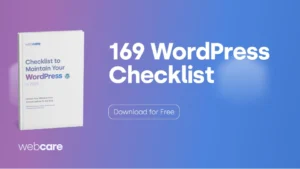
The checklist below is split into five sections by frequency: daily, weekly, monthly, quarterly and yearly. Work through each task in order. Where a task can be automated with a plugin or a managed service, treat that as the minimum, not the finish line. You do not need to do all 169 items by hand every time, but you do need a system that makes sure each one happens on schedule and someone checks the results.
Daily WordPress maintenance tasks
These tasks catch problems within hours rather than weeks. Most can and should be automated, but automated does not mean unattended.
- Confirm the site is loading on desktop and mobile
- Check uptime monitoring alerts from the past 24 hours
- Review any security plugin alerts overnight
- Run an automated malware scan
- Check for failed login attempt spikes
- Confirm the most recent automated backup completed
- Verify the homepage renders with no broken layout
- Load two or three key landing pages and check for errors
- Confirm the checkout or enquiry form still submits
- Check server resource alerts from your host
- Review firewall and blocked IP logs
- Scan for any new files added to the server unexpectedly
- Confirm SSL certificate is valid and not expiring soon
- Check email deliverability for transactional emails
- Review new user registrations for spam accounts
- Clear any urgent error notices in the WordPress dashboard
- Confirm CDN is serving cached assets correctly
- Check for any 500 or 502 server errors in logs
- Monitor real-time traffic for unusual spikes, including AI crawler traffic
- Note any plugin update notifications for the weekly review
Weekly WordPress maintenance tasks
Weekly work usually takes 20 to 30 minutes and is where most updates happen. Always test updates on a staging copy first, never straight on the live site.
- Take a fresh full-site backup before any changes
- Update WordPress core to the latest minor release
- Update all plugins on a staging environment first
- Update themes on staging before production
- Test the live site after each batch of updates
- Roll back any update that breaks functionality
- Check and optimise overall page load speed
- Run a broken link scan across the site
- Fix or redirect any broken internal links
- Clear the site cache after updates
- Moderate and remove spam comments
- Empty the trash for posts, pages and comments
- Review new form submissions and enquiries
- Check Google Search Console for crawl errors
- Review Search Console for new manual actions or warnings
- Cross-check newly disclosed CVEs against your active plugin and theme list
- Deactivate and delete any unused plugins
- Delete any unused themes except one default fallback
- Review user accounts for unfamiliar logins
- Confirm automated backups are still running and stored offsite
- Check disk space usage on the server
- Review 404 error logs and add redirects where needed
- Test contact and booking forms end to end
- Verify e-commerce payment gateway is processing test orders
- Check mobile responsiveness on a real device
- Review the security plugin’s weekly summary
- Confirm two-factor authentication is active for admins
- Update any plugin licence keys nearing expiry
- Check that scheduled posts published correctly
- Review website analytics for sudden traffic drops
Monthly WordPress maintenance tasks
Monthly maintenance adds around 45 minutes to an hour and focuses on deeper performance and database health.
- Run a full performance audit with a speed testing tool
- Optimise and compress new images uploaded that month
- Clean up the WordPress database of overhead
- Remove expired transients from the database
- Delete post revisions beyond a sensible limit
- Remove orphaned metadata and tables left by old plugins
- Run a full malware and file integrity scan
- Compare core files against a known good version
- Review and tighten file and folder permissions
- Audit user roles and remove unnecessary admin access
- Reset or rotate passwords for shared accounts
- Review and prune inactive user accounts
- Test a full backup restore on a staging site
- Confirm backups are stored in at least two locations, following the 3-2-1 rule
- Review and renew hosting and domain if due
- Check Core Web Vitals in Search Console
- Audit the largest pages for render-blocking resources
- Review and update the XML sitemap
- Resubmit the sitemap to Search Console if changed
- Check robots.txt for accidental blocking
- Review redirects and remove redirect chains
- Audit internal linking for orphan pages
- Check for and fix mixed content warnings
- Review and update any outdated content or pricing
- Refresh meta titles and descriptions on key pages
- Test the site on the latest browser versions
- Review plugin and theme changelogs for major updates, including any flagged in the CISA Known Exploited Vulnerabilities catalogue
- Check PHP version and plan any required upgrade
- Review server error logs for recurring issues
- Audit third-party scripts for performance impact
- Confirm GDPR and Australian Privacy Act notices are current
- Review cookie consent and privacy policy links
- Check accessibility basics such as alt text and contrast
- Review email signup and automation flows
- Reconcile e-commerce orders and stock levels
- Test the search function returns relevant results
- Review comment and contact spam filtering effectiveness
- Document any changes made during the month
Quarterly WordPress maintenance tasks
Every three months, step back and review the bigger picture of security, performance and strategy.
- Conduct a full security audit of the site
- Review all installed plugins for ongoing developer support
- Replace any plugins that are no longer maintained
- Review the theme for ongoing developer updates
- Run a deep performance benchmark against competitors
- Review and update the hosting plan if traffic has grown
- Test full disaster recovery from a clean backup
- Review the backup retention policy
- Audit all admin and editor user accounts
- Review API keys and integrations for unused access
- Rotate critical passwords and application passwords
- Review SSL and security headers configuration
- Test the site under simulated high traffic
- Review and update the content strategy
- Audit top landing pages for conversion performance
- Review and refresh older blog posts for accuracy
- Update internal links to point to current content
- Review schema markup and structured data
- Check for duplicate content and canonical issues
- Audit image alt text across the whole library
- Review form conversion rates and fix friction points
- Test all third-party integrations still function
- Review payment gateway fees and settings
- Confirm tax and shipping rules are current
- Review the staging environment is in sync with production
- Update documentation for site configuration
- Review and test the incident response plan
- Audit DNS records for accuracy
- Review CDN configuration and cache rules
- Check that all legal pages are current and linked
- Review accessibility against WCAG guidelines
- Plan major upgrades for the next quarter
Yearly WordPress maintenance tasks
These annual tasks keep your site modern and aligned with your business goals.
- Conduct a comprehensive site-wide audit
- Review overall site architecture and navigation
- Evaluate whether the current theme still fits the brand
- Plan any redesign or rebuild work needed
- Renew domain registration well before expiry
- Renew hosting and review the provider’s performance
- Review and renew all plugin and theme licences
- Reassess the hosting plan against current needs
- Migrate to the latest supported PHP version
- Review the entire plugin stack for consolidation
- Remove long-term unused media from the library
- Archive or delete outdated content
- Conduct a full SEO audit of the site
- Review keyword rankings and search visibility, including AI Overview and AI search citations
- Refresh cornerstone content with current data
- Review backlink profile for toxic links
- Update the brand assets and logo files if changed
- Review and refresh all photography and imagery
- Conduct a full accessibility audit
- Review compliance with the Australian Privacy Act
- Update the privacy policy and terms of service
- Review data retention and deletion practices
- Test full disaster recovery from offsite backups
- Review and update all admin contact details
- Audit every user account and remove stale access
- Review the security strategy against current threats
- Penetration test or vulnerability scan the site
- Review uptime statistics for the year
- Benchmark annual performance trends
- Review analytics goals and conversion tracking
- Reassess Core Web Vitals performance over time
- Review the content calendar for the year ahead
- Set maintenance and security budgets for next year
- Review the maintenance provider or plan
- Document the full site setup and credentials securely
- Review email hosting and deliverability
- Test all automated workflows and integrations
- Review e-commerce platform and plugin roadmap
- Reassess third-party service contracts
- Review insurance and liability for the website
- Confirm all software is on supported versions
- Plan for any major WordPress version migrations
- Review the site’s mobile experience comprehensively
- Reassess the goals the website is meant to achieve
- Survey customers on website usability
- Review competitor websites for new ideas
- Update the maintenance checklist itself
- Schedule the next year of maintenance tasks
- Confirm someone is accountable for every task on this list
What this actually costs in Australia
Whether you run this checklist yourself or pay someone to, it has a real cost either way. Basic WordPress support in Australia starts from around $50 a month for light, reactive fixes. A proper managed care plan that covers the full checklist typically runs $169 to $500 a month for small business brochure sites, and $500 to $2,500 a month once you add e-commerce, higher traffic or compliance needs. Enterprise plans from larger Australian agencies can run several thousand dollars a month.
The cheaper end of the market usually means fewer tasks covered and slower response times. When comparing quotes, check exactly which of the 169 items above are actually included, how quickly a critical CVE like the ones seen in June gets patched, and how often, before comparing price alone.
Doing it yourself vs using a maintenance service
Run manually, this checklist takes a disciplined hour or two each month, plus the time to fix anything that breaks. The hard part is not the effort, it is the consistency. Miss a few weeks of updates during a busy season and your site is sitting exposed to whichever plugin ends up in the next wave of simultaneous critical vulnerabilities, unpatched.
A managed maintenance service handles the whole routine for you. CareWP is run by Perth-based engineers who test every update on a staging copy before it touches your live site, so an update can never break your site without warning. You get a dedicated engineer, transparent monthly reporting and no lock-in contracts.
CareWP plans start at $249 per month for Essential, $549 per month for Professional, and $1,290 per month for Enterprise. For sites that have already run into trouble, one-off malware removal is $499 and full site recovery is $1,497. You can compare what is included on the pricing page or get in touch to talk through what your site needs.
Frequently asked questions
How often should I update WordPress plugins?
Check for plugin updates at least weekly, and apply security updates as soon as they are released. With 91 percent of WordPress vulnerabilities found in plugins, and June 2026 showing six critical flaws exploited at once, delaying updates is the most common way sites get hacked. Always test updates on a staging copy first.
How long does WordPress maintenance take each month?
Done manually, regular WordPress maintenance takes roughly one to two hours per month. Weekly tasks take 20 to 30 minutes, monthly tasks add about an hour, and quarterly and yearly tasks are less frequent but more involved. Fixing problems when they occur adds extra time.
Can I automate WordPress maintenance?
Many tasks such as backups, uptime monitoring and malware scanning can be automated with plugins. However, updates still need testing, and database cleanup and performance audits need human judgement. A managed service like CareWP combines automation with engineer oversight for full coverage.
What happens if I skip WordPress maintenance?
Skipping maintenance leaves known vulnerabilities unpatched, and almost half of disclosed flaws have no fix ready when they go public. You also risk slow load times, broken features after updates, lost backups and search ranking drops. Most damage from neglect is far more expensive to fix than to prevent.
Do I need a maintenance plan for a small business website?
Yes. Small business sites are targeted just as often as large ones, because most attacks are automated and indiscriminate rather than targeted. A maintenance plan keeps your site secure, fast and online, protecting both your reputation and your customers’ data for a predictable monthly cost.
Keep your Perth website covered
This 169-point checklist is the same routine CareWP runs for clients across Perth and Western Australia every month. If you would rather spend your time on your business than on plugin updates and security scans, contact CareWP and let a local team take care of it.
Sources: Patchstack State of WordPress Security in 2026 report; WebPulse analysis of the June 2026 “Simultaneous Six” WordPress vulnerability wave (Wordfence, Patchstack, NVD, adyog.com); Australian WordPress maintenance market pricing surveys, 2026.